
Do I need a Third Party Firewall?
Windows Defender Security Center
 Windows Defender Security Center delivers a robust suite of security features that keep you safe for the supported lifetime of your Windows 10 device.
When your PC is protected by Windows Defender Antivirus you are receiving comprehensive protection for your system, files and online activities from viruses, malware, spyware, and other threats. Peace of mind has never been this easy.
See the source for more details at: Microsoft
The Current Top Five Browsers
 The right web browser can make a huge difference to your everyday browsing – whether your priority is faster performance, better security or more flexibility through downloadable extensions.
However, it can be tricky to break out of your comfort zone. The browser you're currently using might not be the best even on the best laptop, but you've probably become use to its idiosyncrasies over the years without realizing there are better options around that will make your life so much easier.
The best browsers at a glance: Mozilla Firefox, Google Chrome, Opera, Microsoft Edge & Vivaldi.
Source & more details here.
How to reduce SPAM with a Disposable email address
 Disposable email addressing, also known as DEA or dark mail, refers to an approach where a unique email address is used for every contact or entity. The benefit is that if anyone compromises the address or utilises it in connection with email abuse, the address owner can easily cancel (or "dispose" of) it without affecting any of their other contacts. Such disposable addresses are generally provided by a service company (paid or free) that forwards mail from the DEA to the actual address.
Disposable email addressing sets up a different, unique email address for every sender/recipient combination. The most common situations of this type involve online registration for sites offering discussion groups, bulletin boards, chat rooms, online shopping, and file hosting services. In a time when email spam has become an everyday nuisance and when identity theft threatens disposable emails can serve as a convenient tool for protecting Internet users. Wikipedia provides a good introduction of how Disposable email addresses work.
THE FUTURE IS 802.11ax
 802.11ax will become the next mainstream Wi-Fi standard. It builds on the existing 802.11ac platform, using the same frequency bands that we are already using in 2.4Ghz and 5GHz, but uses far more efficient spectrum band management. Even though the underlying data rate in 802.11ax is only 37% higher than 802.11ac, we are going to see speeds 400% faster than the current devices on the market. Even more importantly than just speed though, is that 802.11ax supports even more devices simultaneously talking to one another, through the use of next-generation Multi User Multiple-Input and Multiple-Output technology.
This will give more speed to each individual device on your network, combined with greater overall capacity on your network and your Wi-Fi signals being able to get even greater range around your home. It’s also backwards compatible with 802.11ac and its predecessors, so all your existing devices don’t need to be thrown out, they will work just fine. It’s evolutionary rather then revolutionary, which with our plethora of existing Wi-Fi devices, is a good thing. Source: PC & Tech Authority
Did You Know Your Smartphone Could Do This?
 Do you have an Android smartphone? Most users are barely scratching the surface of Android’s many built-in features. Here are some tips to help you be more productive, and to make using your phone more pleasant.
Have your phone unlock itself - Locking your phone is a basic security precaution; you don’t want strangers to poke around in it if it’s lost or stolen. But it’s a pain to enter a pin, press a fingerprint sensor, or draw a pattern every single time you want to use the phone. That’s why Android includes Smart Lock.
Smart Lock can automatically unlock your phone when you are in a specified location, such as your home, where it’s reasonably safe to do so. It can also unlock the phone when you are carrying it, and other other convenient circumstances. Source & more tips here.
PowerLine AV500 for Bandwidth-Intensive Extension Applications
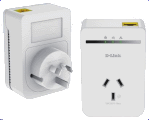 The DHP-309AV features PowerLine AV500, enabling it to deliver data at speeds of up to 500 Mbps, higher than regular PowerLine AV products. This rapid transmission speed makes it ideal for bandwidth-intensive applications, which guarantees smooth HD video streaming, VoIP calls, and lag-free online gaming experiences. This device provides ample network bandwidth, enabling digital home consumers to tap into existing electrical wiring for high-quality multimedia streaming.
Convenient Setup and Secure Operation
The DHP-309AV plugs directly into a power outlet, and does not require any additional cables. Extend your home network by connecting multiple devices in the farthest corners of your home, or attach a switch or wireless access point to the adapter for additional connectivity. For convenient setup, an encryption key can be quickly configured with the push of a button. The adapter implements 128-bit AES data encryption to protect the network from unauthorized wire-tapping. With hassle-free plug and play installation, the DHP-309AV is an ideal solution to create a wall-to-wall home network.
Power-Saving Feature
The DHP-309AV incorporates a power-saving mode to comply with the European Energy Using Product (EuP) Directive. If no data transmission or reception occurs over a certain period of time, the adapter will automatically go into sleep mode to save power, reducing power usage by more than 70% and allowing you to save energy automatically, without sacrificing performance.
QoS (Quality of Service)
A QoS engine will analyze and separate the traffic of the DHP-309AV into multiple data streams. This allows for smooth streaming of Internet Protocol Television (IPTV), HD video, and lag-free online gaming because the most demanding data streams are automatically given priority. Source & more details here.